Edit or delete a gift
Correct a gift that was entered wrongly, or remove one that shouldn't be there.
Note. This is for Administrators and Managers. If you're in Member care, you won't see it in your menu. See Roles and what they can do.
Edit a gift
- Choose Contributions, and choose the gift in the list. (You can also open it from the person's own Contributions tab.)
- Change what you need: the person, amount, date, type, service, payment type or check number.
- Choose Save changes.
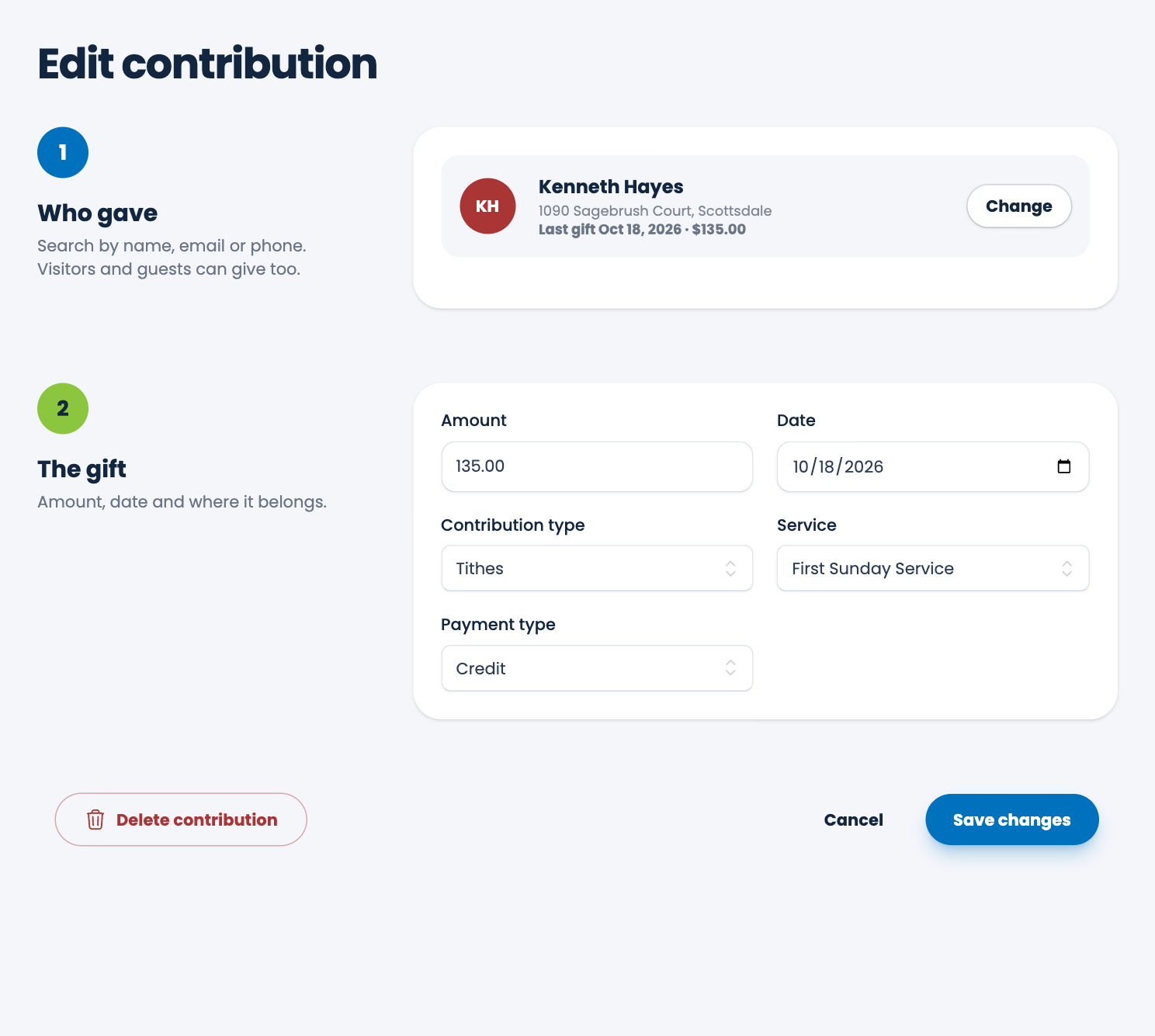
Reports and the dashboard change at once. A gift you edit counts for the date you give it, not the date you edit it.
Careful. If you've already printed giving letters for a year, changing a gift in that year changes what the next print shows. Papers already printed are not changed.
Delete a gift
- Open the gift and choose Delete contribution at the bottom left, beside Cancel and Save changes.
- Read the message and choose Delete.
A deleted gift cannot be brought back, so only delete one that really shouldn't be there. If the amount or the person is wrong, edit it instead.
Gifts for people you've changed
If you delete or merge a person, their gifts stay in your records. A merge moves the duplicate's gifts onto the person you keep. See Find duplicates.
Spotted a mistake, or something that is not clear? Tell us.