End of year giving letters
Print a giving letter for each person who gave in a year, plus itemized summaries and a spreadsheet.
Note. This is for Administrators and Managers. If you're in Member care, you won't see it in your menu. See Roles and what they can do.
At the end of the year, each person who gave usually gets a letter that tells them what they gave. End of year makes all of them at once for any calendar year.
Before you start
Write your letter text once under Settings. See Giving letter.
Steps
- Choose Reports, then End of year.
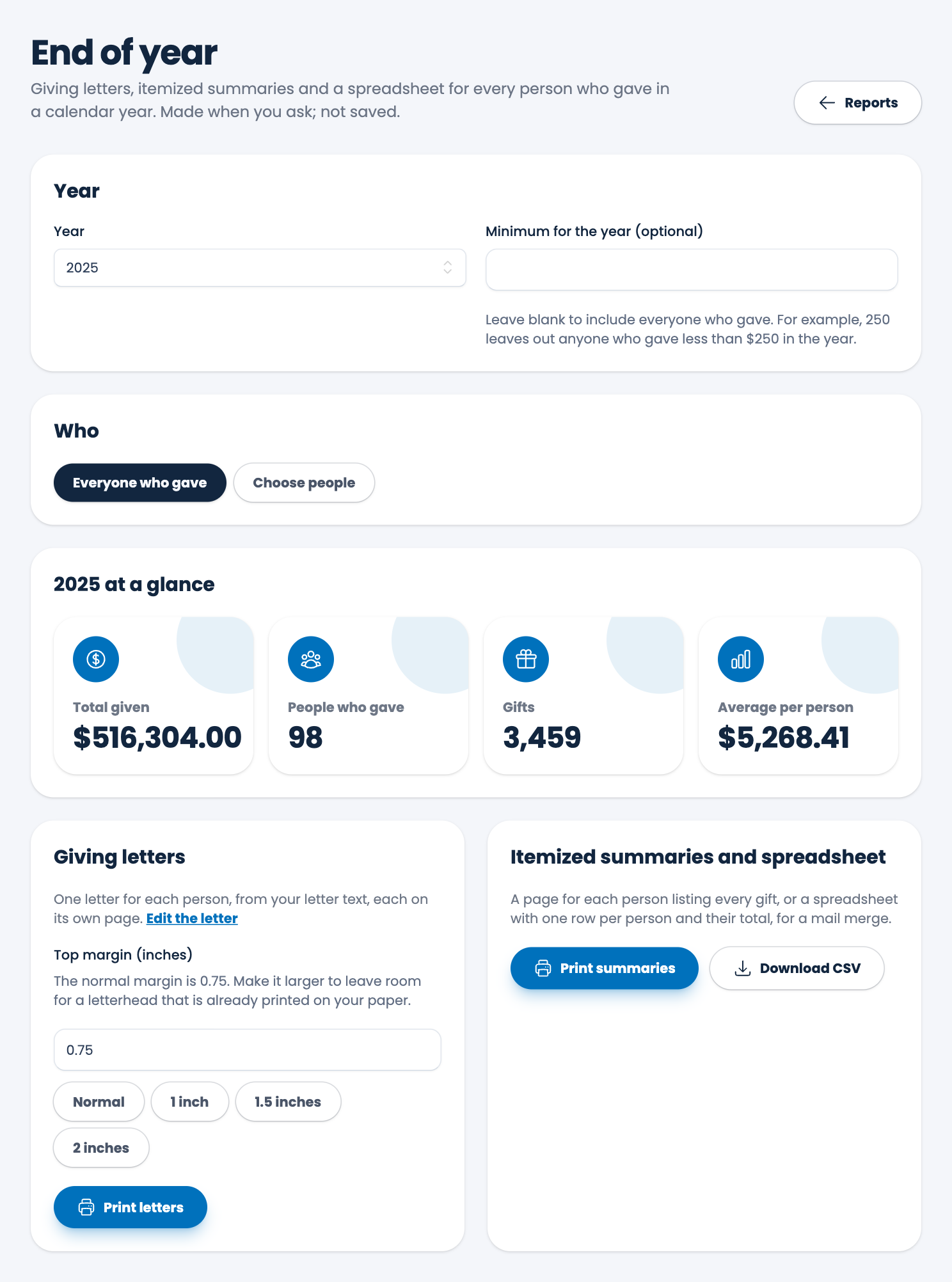
- Choose the Year. Under Minimum for the year, type an amount if you want to leave out people who gave less (for example, 250 leaves out anyone who gave less than $250). Leave it blank to include everyone.
- Under Who, choose Everyone who gave, or Choose people to pick them yourself.
- Check at a glance: total given, people who gave, gifts and the average per person.
- Under Giving letters, set the Top margin (inches) if your paper already has a letterhead. The normal margin is 0.75. 1 inch, 1.5 inches and 2 inches are quick choices.
- Choose Print letters. Each person gets a letter on its own page. See Printing a report.
Itemized summaries and spreadsheet
- Print summaries prints a page for each person listing every gift.
- Download CSV gives a spreadsheet with one row per person and their total, handy for a mail merge.
Careful. Check your year's gifts before you print. A gift entered later changes the letters. Letters are made when you ask and aren't saved.
Spotted a mistake, or something that is not clear? Tell us.