Delete your account
As an Administrator, delete the account, and with it your church, every user and every record.
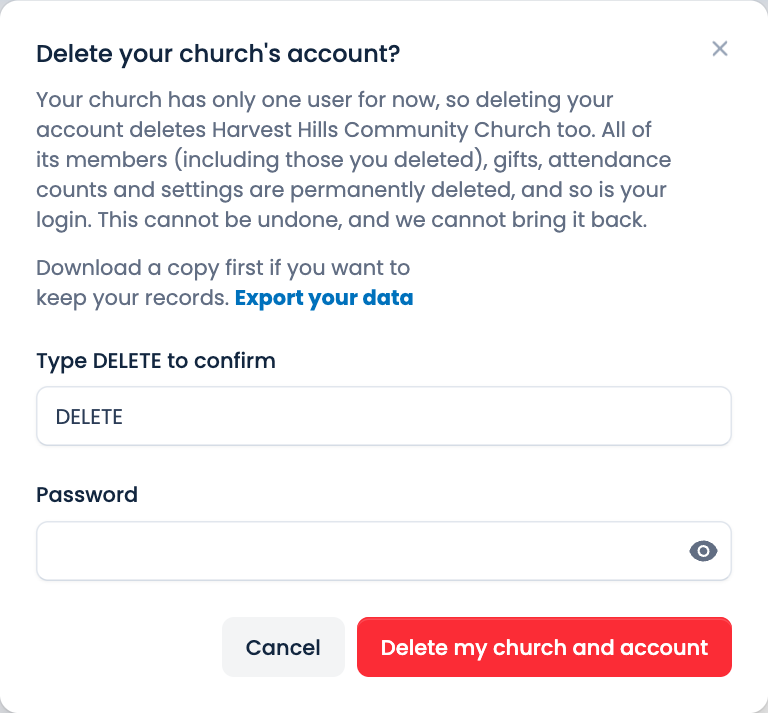
Careful. Deleting the account deletes your whole church too: every member (including those you've deleted), every gift, every attendance count, your lists and settings, and the login of every user. Only an Administrator can do it. Other users don't see the button. It can't be undone, and we can't bring it back. Download a copy first. See Export your data.
Steps
- Choose Settings, then Profile.
- At the bottom, under Delete account, choose Delete account.
- Read what will be deleted. If you want to keep your records, choose Export your data first.
- Type the word DELETE, in capitals, in the box. The red button stays dimmed until you've typed it.
- Type your Password.
- Choose Delete my church and account.
You're signed out, and we send an email to everyone who had a login, to confirm that your church was deleted. You can't sign in to it again.
If you only want to change the email you sign in with, edit your profile instead. See Your profile.
Note. If you only want to stop using ECM for a while, you don't need to delete anything. Your records stay as they are. Churches that go unused for a long time are deleted after warnings, as our Terms explain.
Spotted a mistake, or something that is not clear? Tell us.