Log in
Sign in to ECM, use a passkey or two-step code, and get back in if you forget your password.
Log in
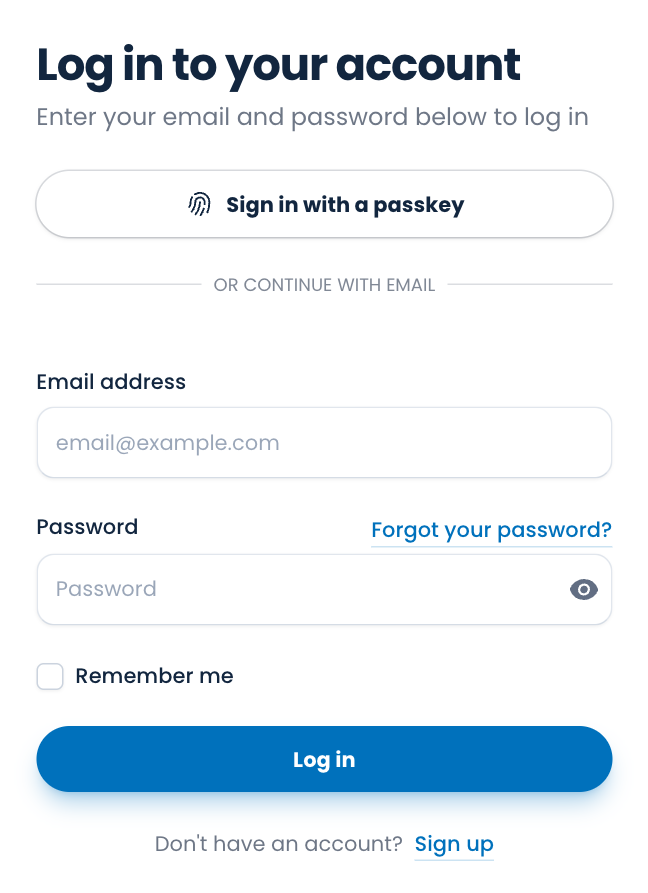
- Go to the ECM home page and choose Log in.
- Enter your Email address and Password.
- Choose Log in.
Tick Remember me on a computer or phone that only you use, and ECM keeps you signed in there. Don't tick it on a shared computer.
Note. If you're away from ECM for about two hours, it signs you out to keep your church's records safe. Log in again and carry on.
Sign in with a passkey
If you've set up a passkey, choose Sign in with a passkey at the top of the log in page. Your device asks for your fingerprint, your face or your screen PIN, and you're in, with no password to type. You set up a passkey in Settings. See Password and security.
If you use two-step sign-in
After your password, ECM asks for an Authentication code. Open your authenticator app, find ECM, and type the six-digit code it shows.
If you can't get to your app, choose login using a recovery code and type one of the recovery codes you saved when you turned on two-step sign-in. Each recovery code works once.
If you were added by someone else
An Administrator can add you to their church. You get an email with a button to choose your own password; it works for 7 days. After that, log in as above. If the link has stopped working, ask the Administrator to send it again. See Add a user.
If you forget your password
- On the log in page, choose Forgot your password?
- Enter your email address and choose Email password reset link.
- Open your email and choose the link we send. It works for 60 minutes.
- Enter and confirm a new password. The rules are the same as when you signed up. See Sign up.
- Log in with your new password.
If the email doesn't arrive, check your spam or junk folder, and make sure you typed the address you signed up with.
If it won't let you in
- After five wrong tries in a minute, ECM makes you wait a minute before you try again. This stops anyone guessing your password.
- If you see "Check your email" instead of your dashboard, you haven't confirmed your email address yet. Choose the link we sent, or Resend verification email.
- If we've updated our Terms or Privacy Policy, you're asked to read and accept them before you carry on. It takes a moment.
Log out
Choose your name at the bottom of the menu, then Log out.
Spotted a mistake, or something that is not clear? Tell us.