Find your way around
The menu, the dashboard and where to find things.
After you sign in you land on your dashboard. Everything else in ECM is reached from the menu on the left.
The menu
On a phone the menu is behind the button at the top left. You see the items your role can use, so a Manager or someone in Member care sees a shorter menu than an Administrator. See Roles and what they can do.
| Menu item | What it's for |
|---|---|
| Dashboard | Giving and attendance at a glance, birthdays and anniversaries coming up, and new visitors to follow up. |
| Members | Everyone in your records, members and visitors. |
| Contributions | Record gifts, and look back at what was given. |
| Attendance | Count how many people came to each service. |
| Reports | Printable reports, deposit slips and the year-end giving letters. |
| Utilities | Import and export your data, find duplicates, and restore deleted members. |
| Users | Add the people who help you and choose what each can do. Only an Administrator sees it. |
| Support | Ask us for help, and see your earlier requests. |
| Documentation | This help, opened to the page that goes with where you are. See below. |
| Settings | Your account, your church's details, your lists and your letters. |
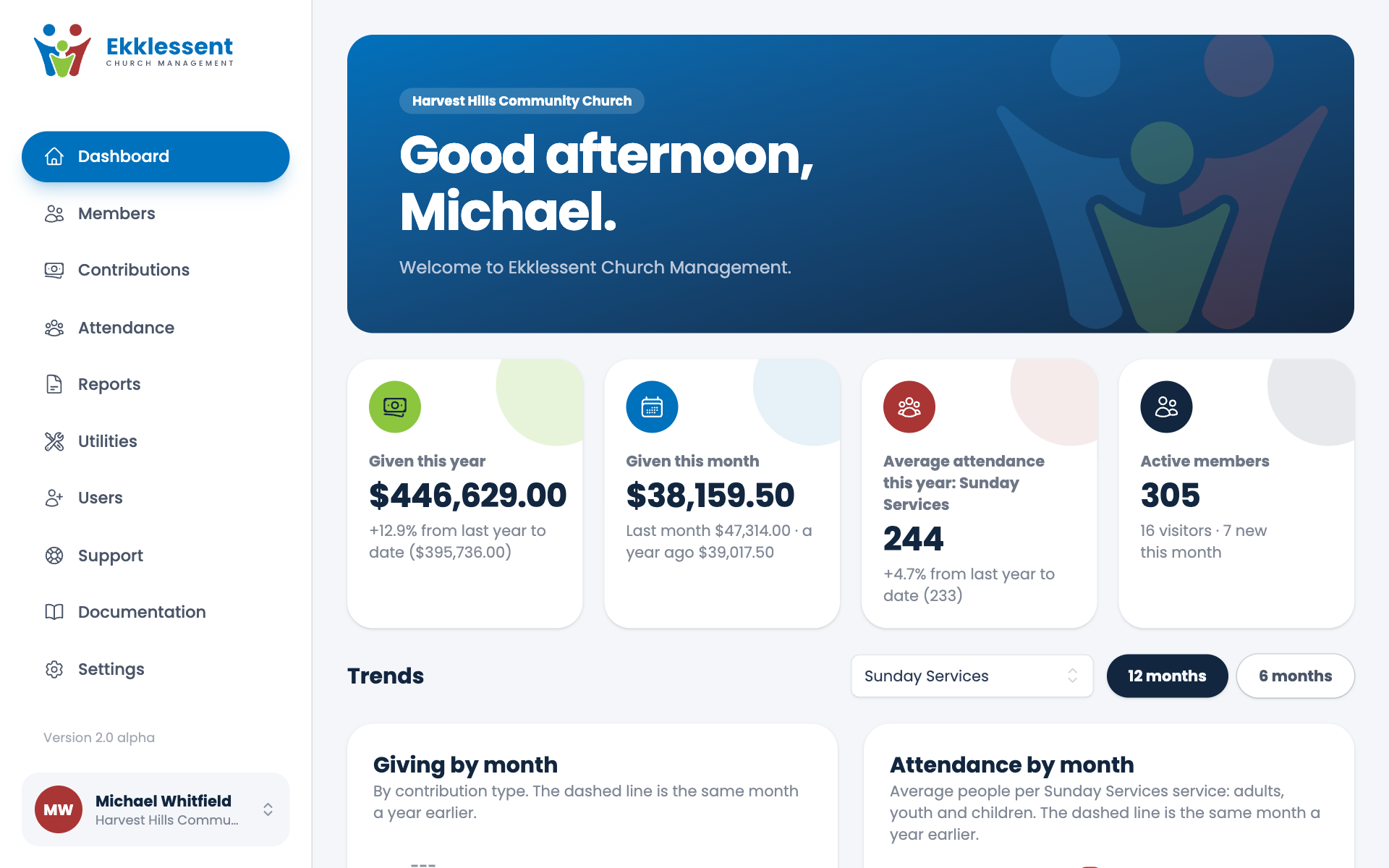
The dashboard
At the top are four cards: what your church has given this year and this month, average attendance this year, and how many active members you have. Below them:
- Trends shows giving and attendance by month. Choose 12 months or 6 months, and hover over a bar to see the figures behind it.
- Birthdays and Anniversaries list who's coming up in the next 30 days.
- Recent visitors lists people who first came in the last 30 days, so you can follow up.
A brand-new church has a Getting started list at the top instead. It shows the first few things to do, such as adding your first member and recording your first gift, and each item is a link.
Note. The dashboard only ever shows totals and counts for your church. It never shows who gave what.
Your account
Your name and church are at the bottom of the menu. Choose them to reach your account settings or to log out. In Settings you can also choose light or dark appearance, or let ECM follow your device. See Appearance.
Getting help
- Choose Documentation in the menu. It opens this help in a new tab, already on the page about the screen you're on, so your work stays where it is. See below.
- Read the Quick tips: a short list of habits that make ECM easier to use.
- Search this help from the box on the left, or browse the sections.
- Choose Support in the menu to ask us directly. We reply by email.
Help for the page you're on
Documentation in the menu is a shortcut to the right page of this help:
- On the Members list it opens Members and visitors, and on a person's own page it opens View a member.
- On a form for adding a gift it opens Record a gift, and on a report it opens that report's page.
- In Settings, each page opens its own help, and the lists of contribution types, services and payment types each open theirs.
- On Utilities it opens that section, and on each tool inside it, that tool's page.
If a page doesn't have a help page of its own, you land on the front page of this help instead, where you can search or browse.
Tip. It opens in a new tab, so you can follow the steps in one tab and work in the other. Close the help tab when you're done.
Spotted a mistake, or something that is not clear? Tell us.