Service report
The weekly deposit sheet: attendance, cash counted, every gift and the deposit totals.
Note. This is for Administrators and Managers. If you're in Member care, you won't see it in your menu. See Roles and what they can do.
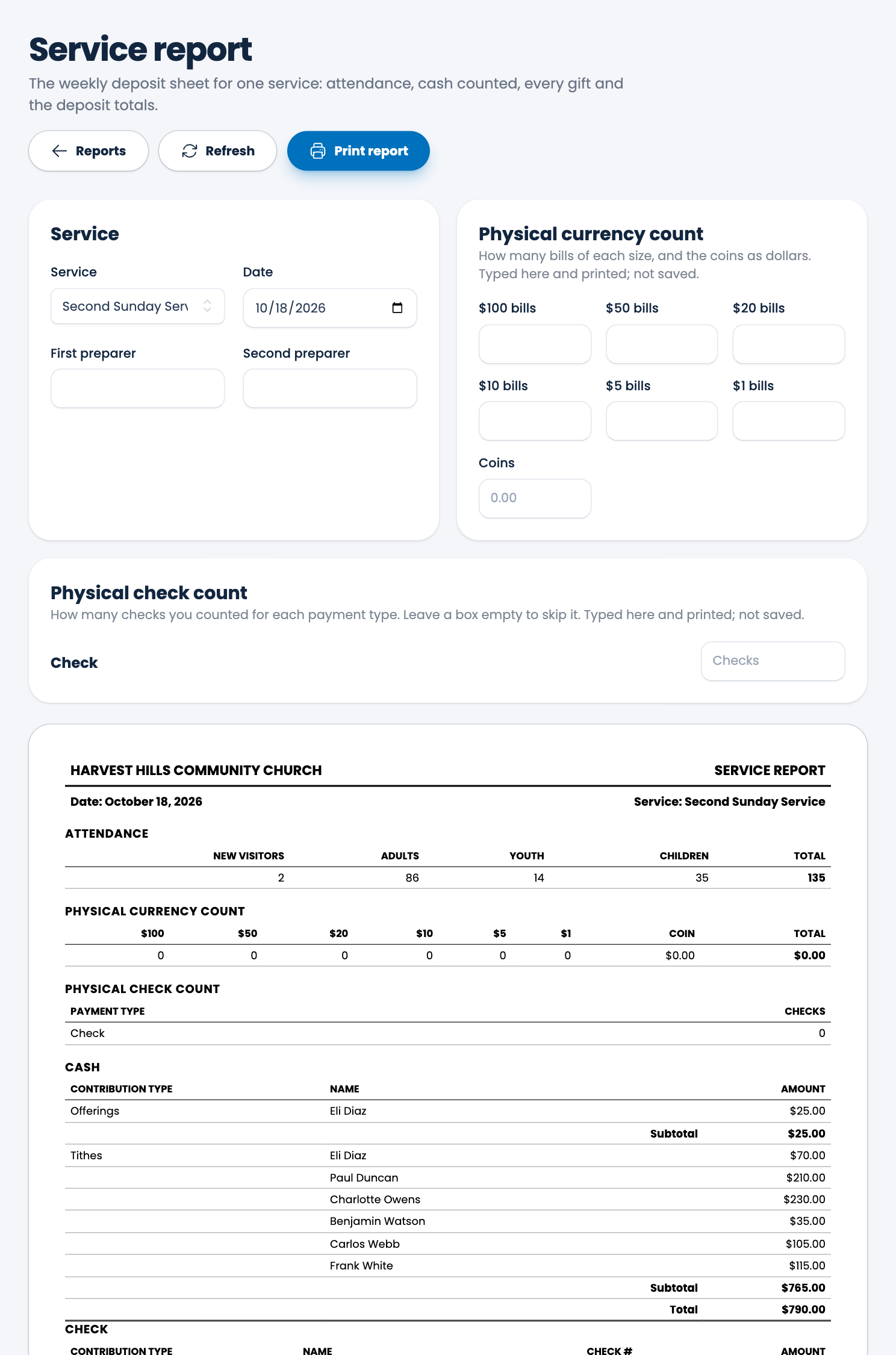
The service report is the sheet your counters fill in after a service. It shows the attendance, the cash and checks you counted by hand, and every gift recorded for that service, so you can tie them together.
Steps
- Choose Reports, then Service report.
- Under Service, choose the Service and the Date. It starts with your most recent service.
- Type the names of the First preparer and Second preparer, if you want them on the page.
- Under Physical currency count, type how many $100 bills, $50 bills, $20 bills, $10 bills, $5 bills and $1 bills you counted, and the Coins as dollars.
- Under Physical check count, type how many checks you counted for each payment type. Leave a box empty to skip it.
- Choose Print report. See Printing a report.
What's on the page
- Attendance: new visitors, adults, youth, children and the total for that service and day.
- Physical currency count and Physical check count: exactly what you typed.
- A section for each payment type (Cash, Check and so on) listing each gift by contribution type, name and amount, with subtotals and a total. Checks also show the check number.
Note. What you type for the currency and check counts is only printed. It isn't saved, so type it again next time.
Tip. Choose Refresh after you add a gift in another tab, to bring the report up to date.
Spotted a mistake, or something that is not clear? Tell us.