Add a user
Invite someone to your church by email, choose their role, and what they do next.
Note. Only an Administrator can do this. Others don't see Users in their menu.
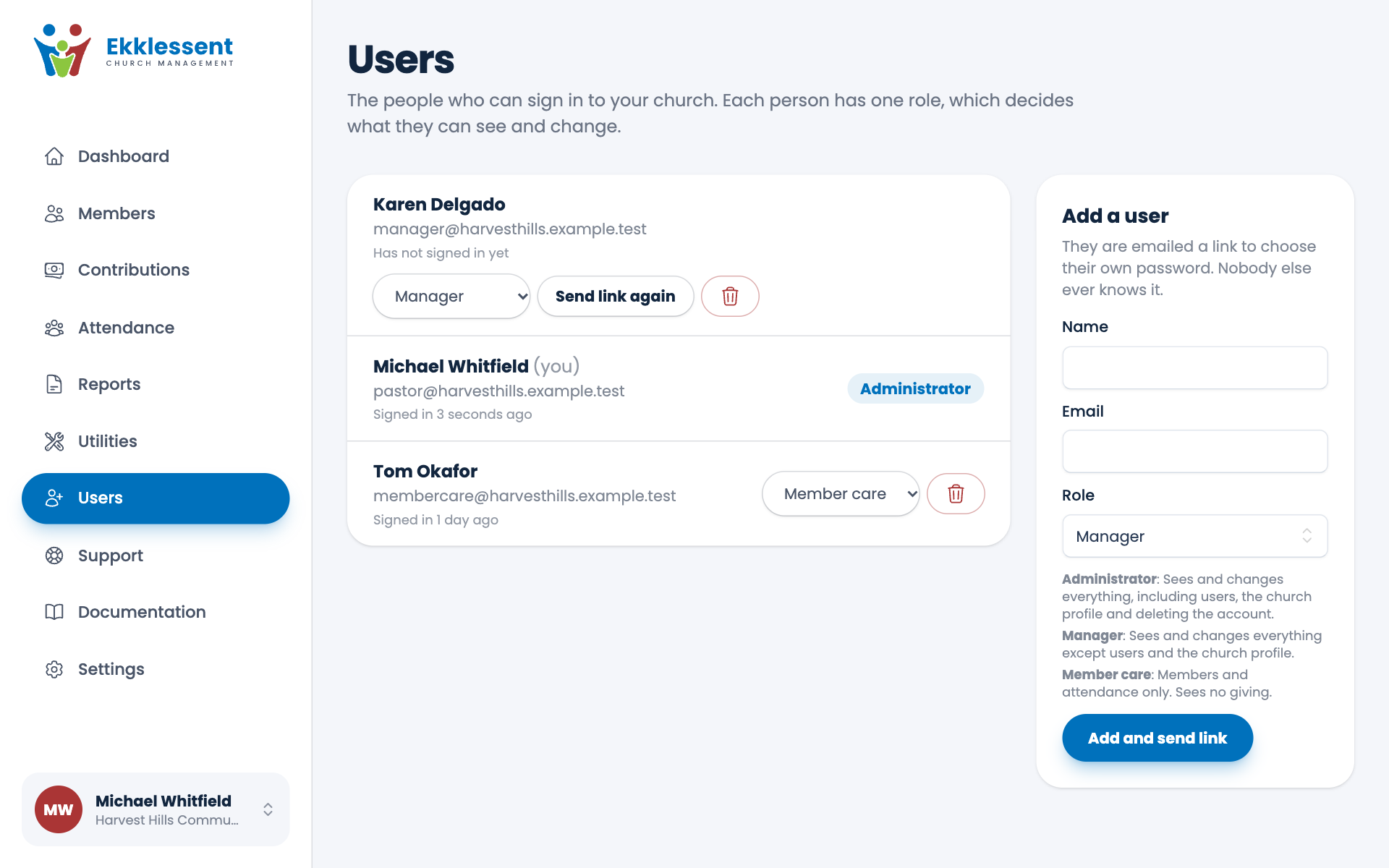
Only an Administrator can add users. Each person you add gets their own login, so you can always tell who did what, and you never have to share a password.
Steps
- Choose Users in the menu.
- Under Add a user, type their Name and Email.
- Choose their Role. The list under the form says what each role is for. See Roles and what they can do.
- Choose Add and send link.
ECM emails them a link to choose their own password. Nobody else, including you, ever knows it. The link works for 7 days.
What the person does
- They open the email and choose Choose my password.
- They choose a password and log in.
- The first time, they read and accept the Terms and Conditions, like everyone else.
They can set up two-step sign-in or a passkey from their own Settings. See Password and security.
If the email doesn't arrive, or the link has stopped working
On the Users page, a person who hasn't signed in yet has a Send link again button. Choose it and they get a new email with a new 7 days. Ask them to check their spam or junk folder first.
One church for each person, for now
An email address can belong to one ECM account. If you see a message that the address already has an account, that person is already using ECM, perhaps for another church, and needs a different address for now.
Spotted a mistake, or something that is not clear? Tell us.