Password and security
Change your password, turn on two-factor sign-in, and add passkeys.
Choose Settings, then Security. ECM may ask you to confirm your password first, since this page protects your account.
Change your password
- Type your Current password.
- Type a New password, and again under Confirm password.
- Choose Save.
Use a long, random password, or a few words strung together, and don't reuse one from another site.
Two-factor authentication
Two-factor sign-in asks for a six-digit code from an app on your phone each time you sign in, as well as your password.
- Under Two-factor authentication, choose Enable 2FA.
- Scan the QR code with an authenticator app on your phone, or choose or, enter the code manually.
- Type the code the app shows, and confirm.
- Choose View recovery codes and keep them somewhere safe, such as a password manager. Each code works once if you lose your phone.
To turn it off, choose Disable 2FA.
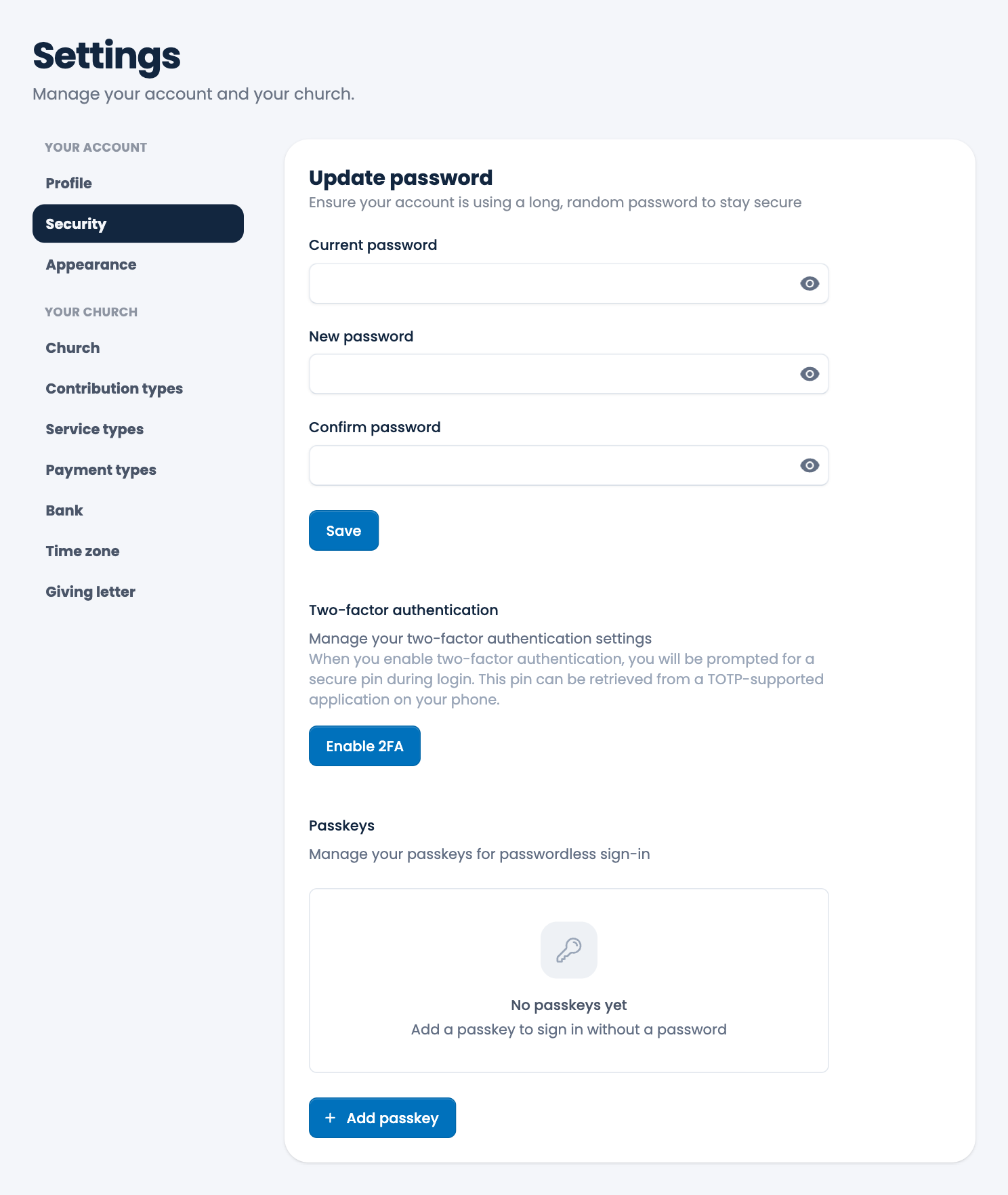
Passkeys
A passkey lets you sign in with your fingerprint, face or device PIN instead of a password.
- Under Passkeys, add a passkey and follow your device's prompts.
- Next time, choose the passkey button on the sign-in page. See Log in.
Each passkey shows when it was added and last used. Choose Remove passkey to delete one you no longer use.
Tip. If you can't remember your password, use the reset link on the sign-in page. It's valid for 60 minutes.
Spotted a mistake, or something that is not clear? Tell us.