Find duplicates
Find people who were added twice, or gifts entered twice, and tidy them up.
Note. If you're in Member care, you can find and merge duplicate Members, but you won't see the Gifts tab or any gift counts. See Roles and what they can do.
Duplicates looks for people who may have been added twice, and for gifts that may have been entered twice.
Members
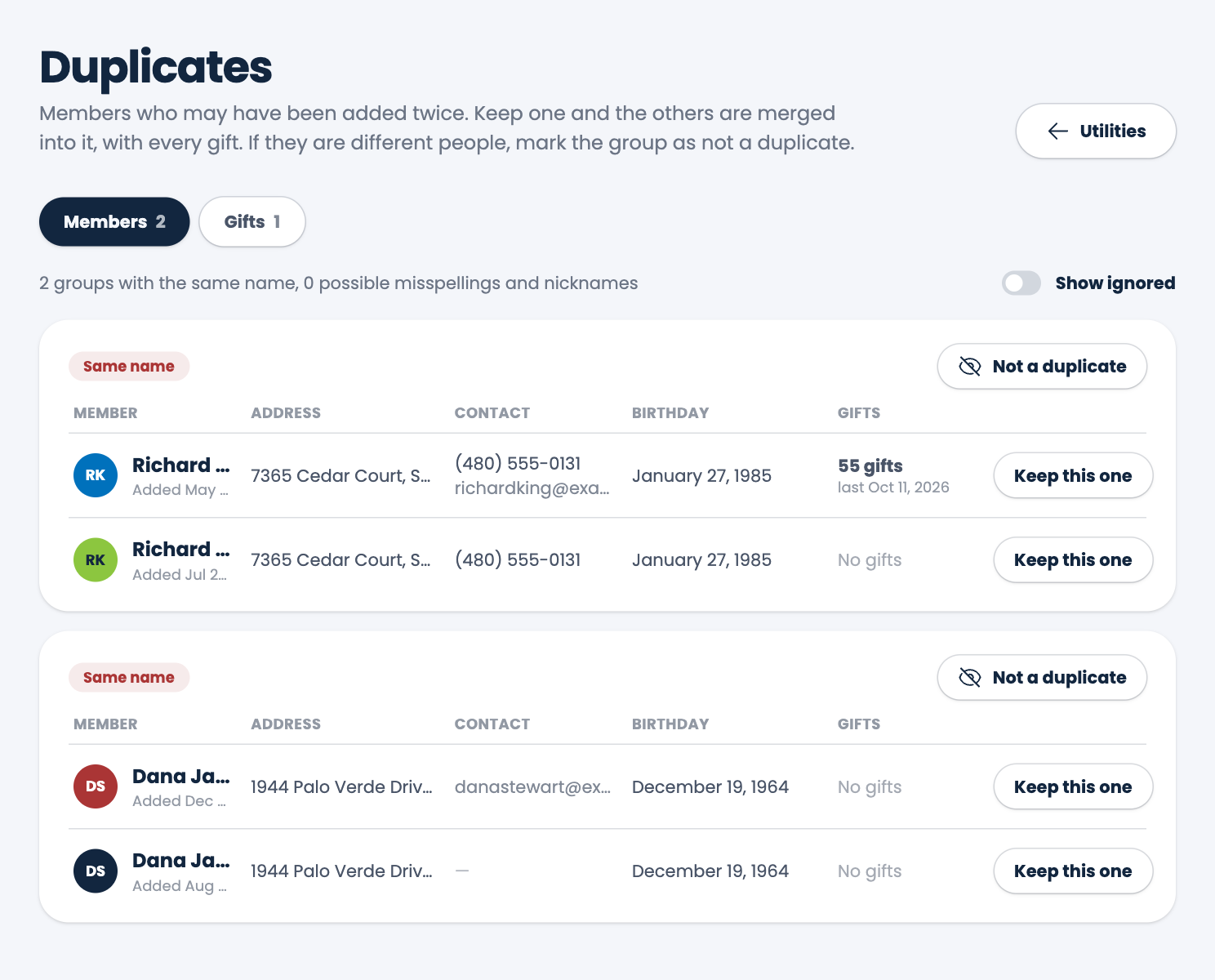
- Choose Utilities in the menu, then Duplicates. The Members tab opens first.
- Each group shows the people who may be the same: their address, contact details, birthday, and how many gifts they have. A label tells you why they're grouped, such as Same name.
- If they are the same person, choose Keep this one beside the one you want. The others are merged into it, with every gift. Confirm with Merge.
- If they are different people, such as a father and son with the same name, choose Not a duplicate. The group is hidden from now on.
Turn on Show ignored to see the groups you've hidden. Choose Undo ignore to bring one back.
Careful. Merging can't be taken back. Look at the address, birthday and gifts first so you keep the right record.
Gifts
- Choose the Gifts tab.
- Each group is gifts that match in every way: the same member, date, amount, type, service, payment type and check number. The group is marked, for example, Entered one after the other.
- If one is an extra copy, choose the trash button beside it and confirm Delete. Choose Not a duplicate if they are all real, such as two identical gifts that really were given.
Spotted a mistake, or something that is not clear? Tell us.