Contributions report
List the gifts in a date range, with a summary, filters and grouping.
Note. This is for Administrators and Managers. If you're in Member care, you won't see it in your menu. See Roles and what they can do.
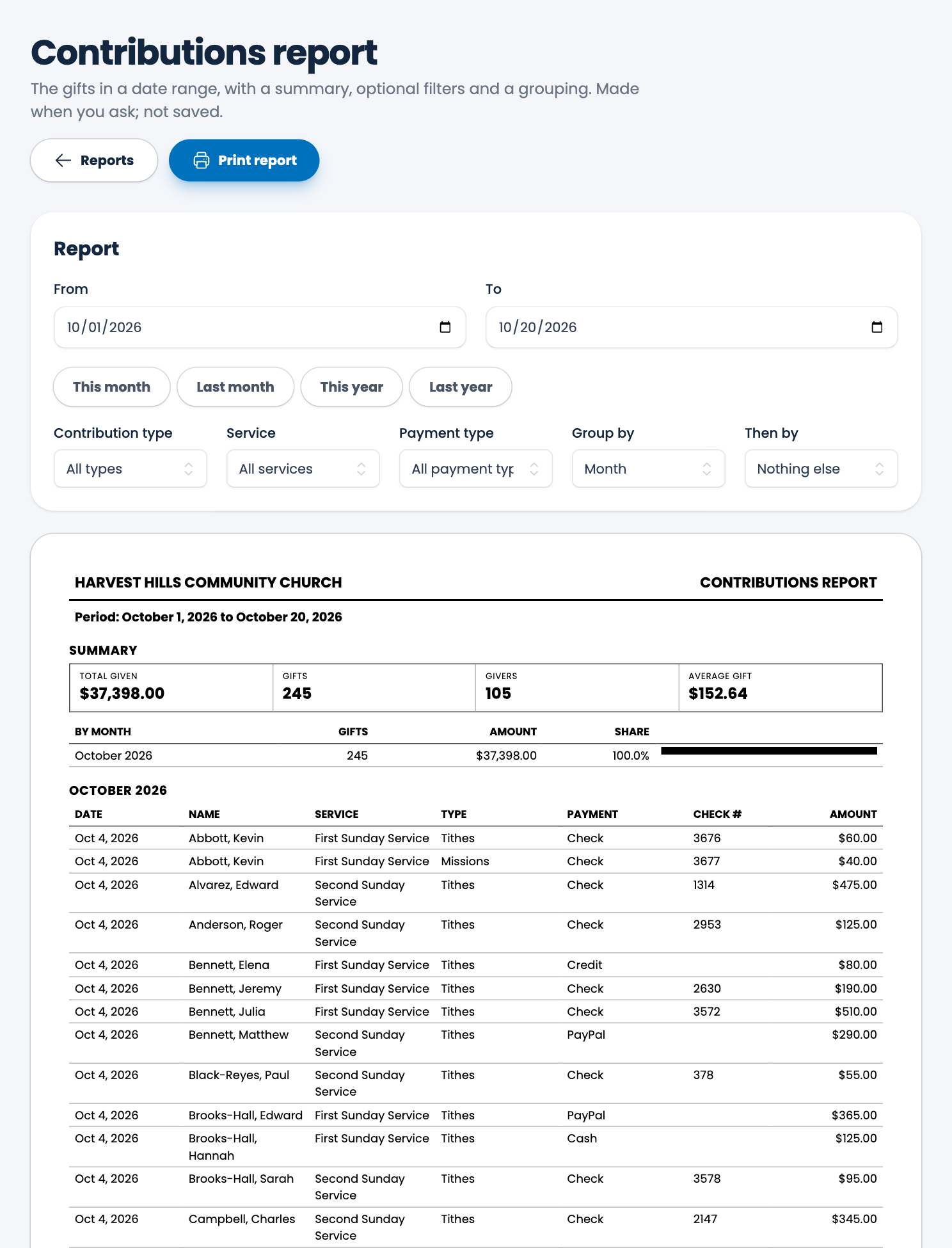
The contributions report lists the gifts in a date range, with a summary at the top.
Steps
- Choose Reports, then Contributions report.
- Set From and To, or choose This month, Last month, This year or Last year.
- Narrow it down if you want, with Contribution type, Service and Payment type.
- Choose Group by, and Then by to group a second way. You can group by Contribution type, Payment type, Service, Service group, Month or Member, or choose None.
- Choose Print report. See Printing a report.
What's on the page
- A summary: Total given, Gifts, Givers and Average gift.
- A table of each group with its gifts, amount and share of the total.
- Under each group, every gift: date, name, service, type, payment type, check number and amount.
Tip. Group by Member to see what each person gave in the period. For a year's giving for tax receipts, use End of year giving letters.
Spotted a mistake, or something that is not clear? Tell us.