Add a member
Add one person to your church's records, or a visitor from a visitor card.
You only need a first name and a last name. Everything else is optional, and you can fill it in later.
Steps
- Choose Members in the menu, then Add member.
- Enter their First name and Last name. You can add a Middle name too.
- Add their contact details if you have them: Email, Mobile phone and Home phone.
- Add their address: Street address, City, State and Zip code.
- Under Dates and notes, add their Birthday and Anniversary if you know them. The year is optional. These show on your dashboard when they're coming up.
- Add any Notes, then choose Save member.
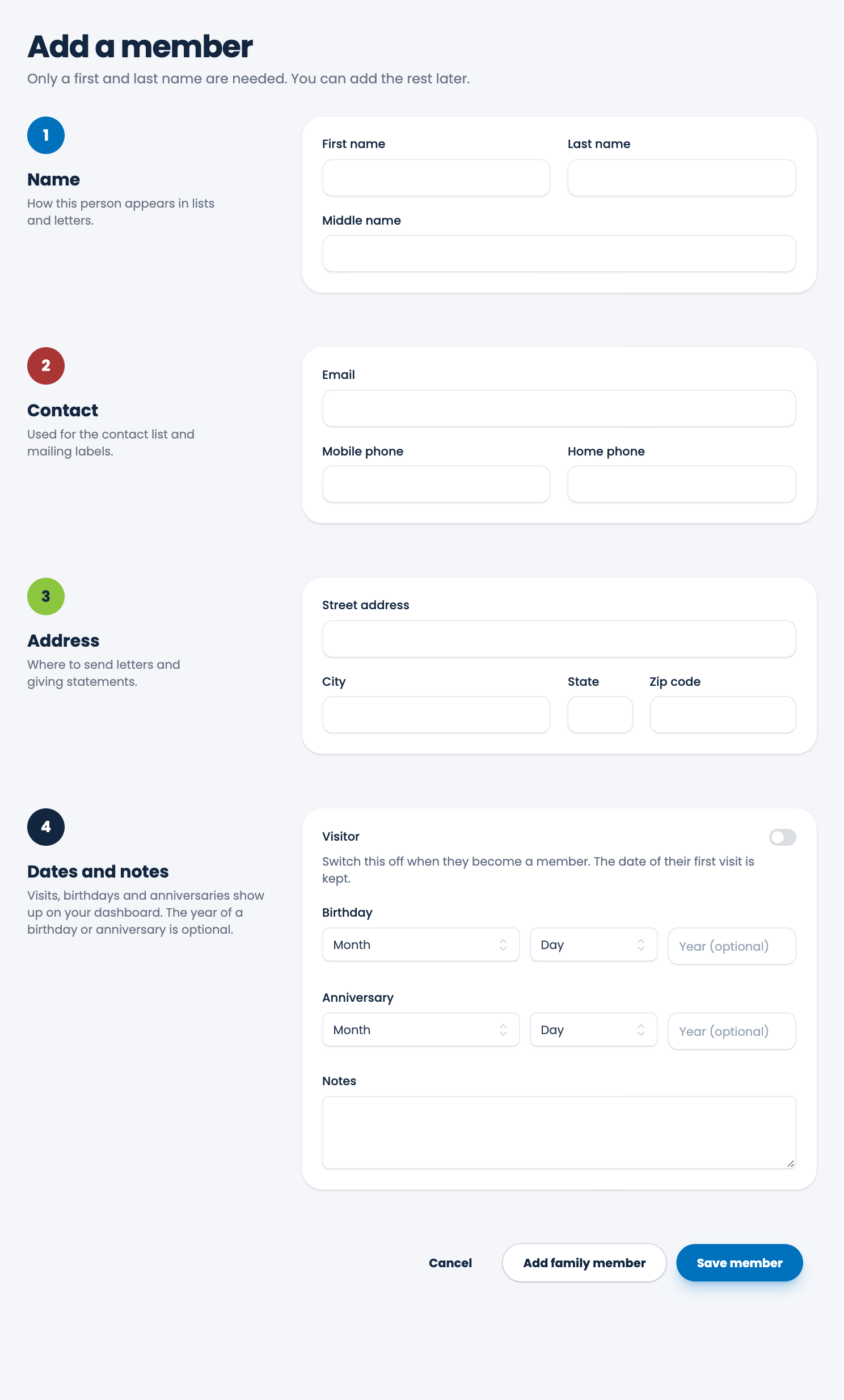
Everyone you add starts as an active member. If someone stops coming, you can mark them inactive later without losing anything. See Members and visitors.
Add a visitor
- Choose Members, then Add visitor.
- Check the First visit date. It starts as today, and you can change it to the day they came.
- Enter their First name and Last name, and whatever else is on the visitor card: email, phone and address.
- Choose Save visitor.
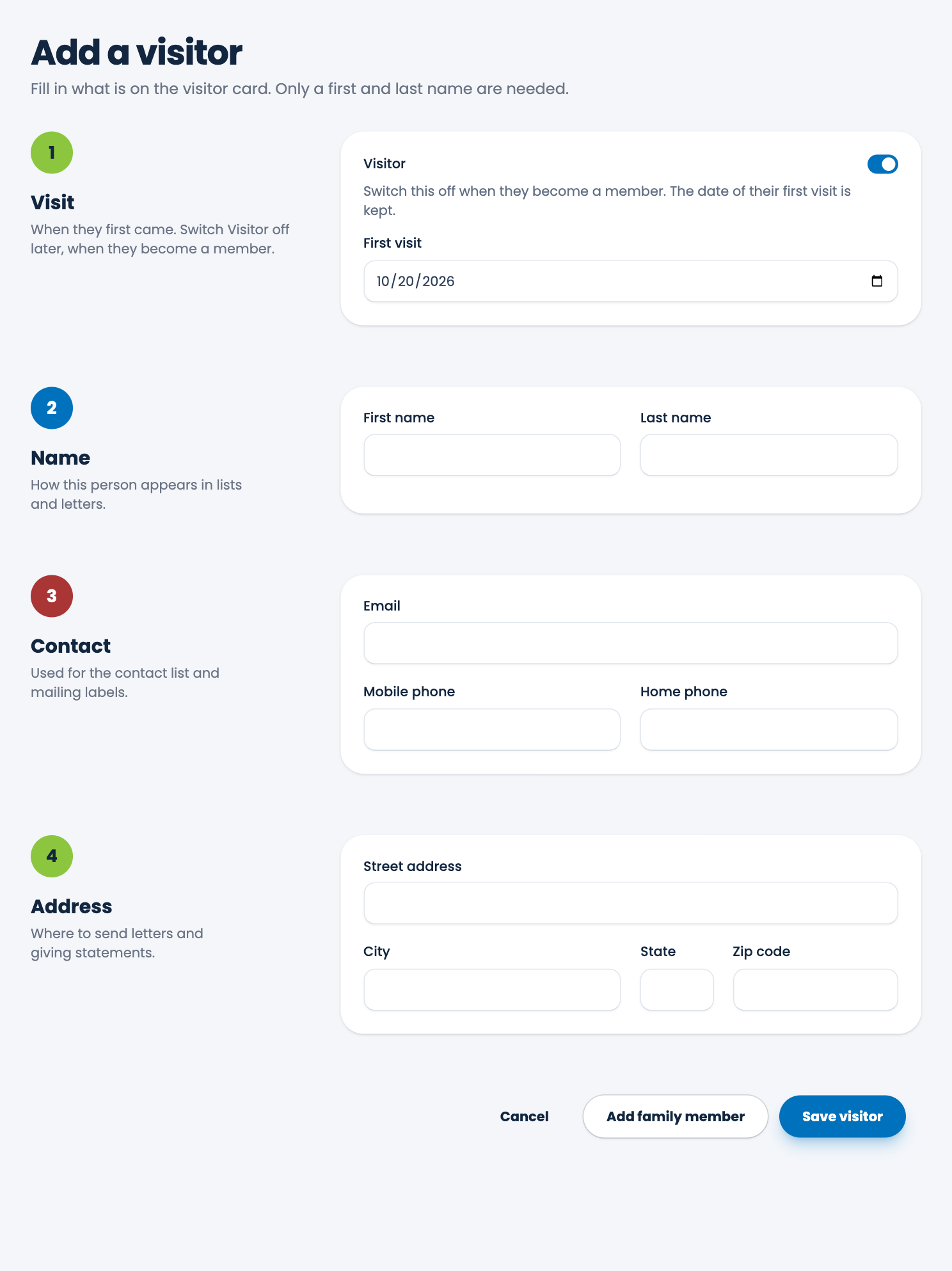
The visitor form leaves out the middle name, birthday, anniversary and notes. You can add them later by opening the person's record.
When a visitor joins your church, open their record and switch Visitor off under Dates and notes. They become a member, and the date of their first visit is kept.
If the name is already there
If someone with the same name is already in your records, ECM tells you before it saves. Choose Look at them first to check whether it's the same person. If it's a different person with the same name, choose Add this member anyway.
Tip. To add a spouse and children, use Add family member. See Add family members.
Spotted a mistake, or something that is not clear? Tell us.